How to Use G-Lock Analytics with EasyMail7?
G-Lock Analytics is integrated with our email sending software EasyMail7. In combination with EasyMail7 G-Lock Email Analytics uses the encrypted recipient’s email address in the tracking links to enhance Inbox delivery because modern anti-spam filters may block email messages with links containing an email address.
When you use G-Lock Analytics, the unsubscribe process is handled online. And you can set EasyMail7 to automatically add unsubscribed contacts collected by G-Lock Analytics to Global Exclusion List so that you do not have to manually export and import unsubscribes into EasyMail7 exclusion lists. Plus, these contacts will be automatically marked as ‘unsubscribed’ in the EasyMail7’s internal groups.
Watch this quick video to learn how easy it is to send emails and track email opens and link clicks using EasyMail7 and G-Lock Email Analytics.
Step 1. Login to Your Account.
Click here to login to your G-Lock Analytics account.
If you don’t have an account on G-Lock Analytics yet, choose a plan and signup.
An email with an account activation link will be sent you via email. Click on the link to activate your account
Step 2. Download Redirect Script.
To be able to track emails, you must upload the redirect script to your website. The redirect script is used to generate tracking links.
After login click on "Account".
If your website is hosted on a Unix/Linux platform, download the PHP redirect script.
If your website is hosted on a Windows platform, download the ASP or ASPX redirect script.
Step 3. Upload Redirect Script to Your Web Site.
Upload the redirect script to your website using any FTP client, for example, FlashFXP.
To make sure the script is working on your site, open the script URL in the browser.
If it redirects to our /about/emltr page, the script is working and can be used to track email messages.
Step 4. Login to Your Account from EasyMail7.
Start EasyMail7.
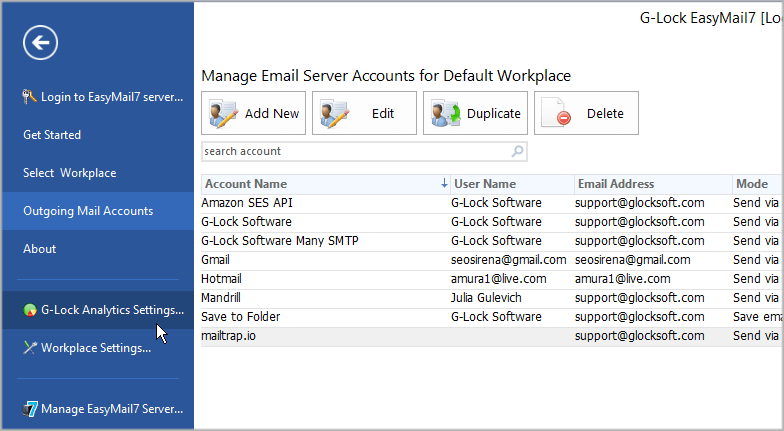
Click on the Workplace menu at the top left corner of the program window.
Click on "G-Lock Analytics Settings".
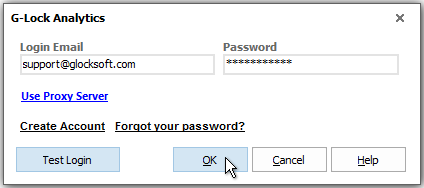
Enter your login email address and password for your account on G-Lock Analytics:
Click on "Test Login" button to test your settings.
Click OK to save G-Lock Analytics Settings.
Step 5. Add Email Campaign.
An email campaign is the email message with further tracking statistics.
To add a campaign:
Create an email message.
Click on "Campaign Tracking Analytics" tab on the Edit Message window.
Click on "Enable Tracking" button on the menu bar.
Click on "Add New Campaign".
Fill in the form:
Campaign Name: any name for your campaign (you can enter the subject of your email, for example)
Tag: a tag if you want the campaign to be tagged automatically in your account (tags help sort the campaigns out)
Redirect Script URL: type the URL of the redirect script on your website.
Example: http://www.yourdomain.com/r.php
Click "Add" to add the campaign.
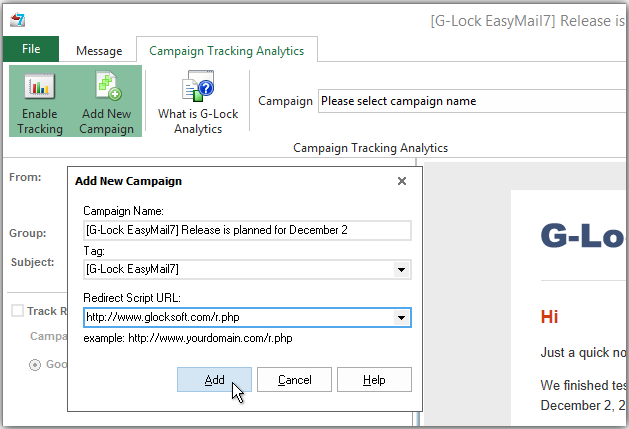
The campaign will be added to your G-Lock Analytics account and will be automatically selected in the "Campaign" field.
Step 6. Send Email with Tracking Links.
EasyMail7 adds the code to track opens, prints and forwards to your message source automatically during the sending process. If your message contains links, EasyMail7 automatically converts normal links into tracking links and inserts tracking links into the message. Also, EasyMail7 automatically reports the number of recipients to whom the message was sent to the campaign in your G-Lock Analytics account. The number of recipients is required to correctly calculate open and click rate.
This means that you only have to create a message with normal links and send it with tracking enabled. EasyMail7 will do the rest for you.
Click on the Message menu.
Write or load the email message.
Select the account in the From field.
Select the group in the Group field.
Click "Send".
It is recommended to send a test message to make sure the tracking code works well.
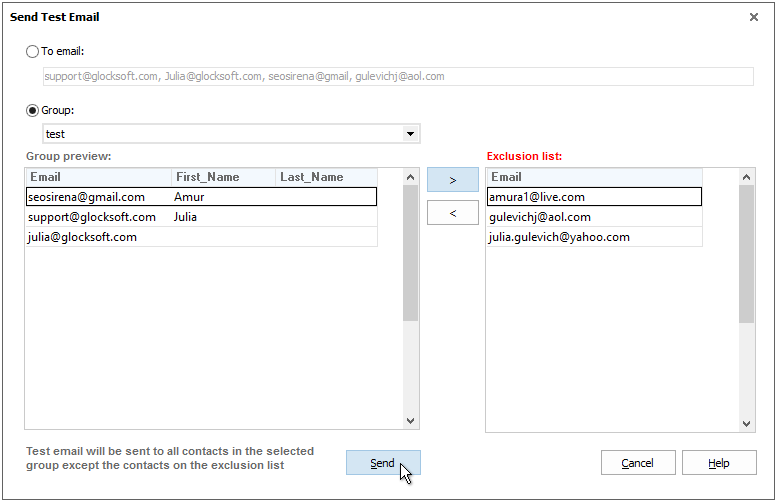
After testing your email copy and tracking links, you can send the message to your subscribers.
As we said, EasyMail7 replaces ALL normal links in your message with tracking links. But there are two cases when the links are not be replaced by tracking links:
1) If a link includes a merge field, for example, https://twitter.com/glocksoft%%Comment%%
2) If a link is already converted into the tracking link.
Trick: how to keep an original link in the email if you don't want to track it.
Go to the HTML source of the email, find the link, put the mouse at the end of the link, click on the Merge menu and merge a field that is empty for this group in EasyMail7, for example, https://twitter.com/glocksoft%%Comment%%
Now when the link contains a merge field, it will not be replaced with the tracking link. Since the %%Comment%% field does not contain values in the contact group, nothing will be merged at the end of the link.
The link will look like http://twitter.com/glocksoft when your subscribers receive the email.
Step 7. Get Email Tracking Reports.
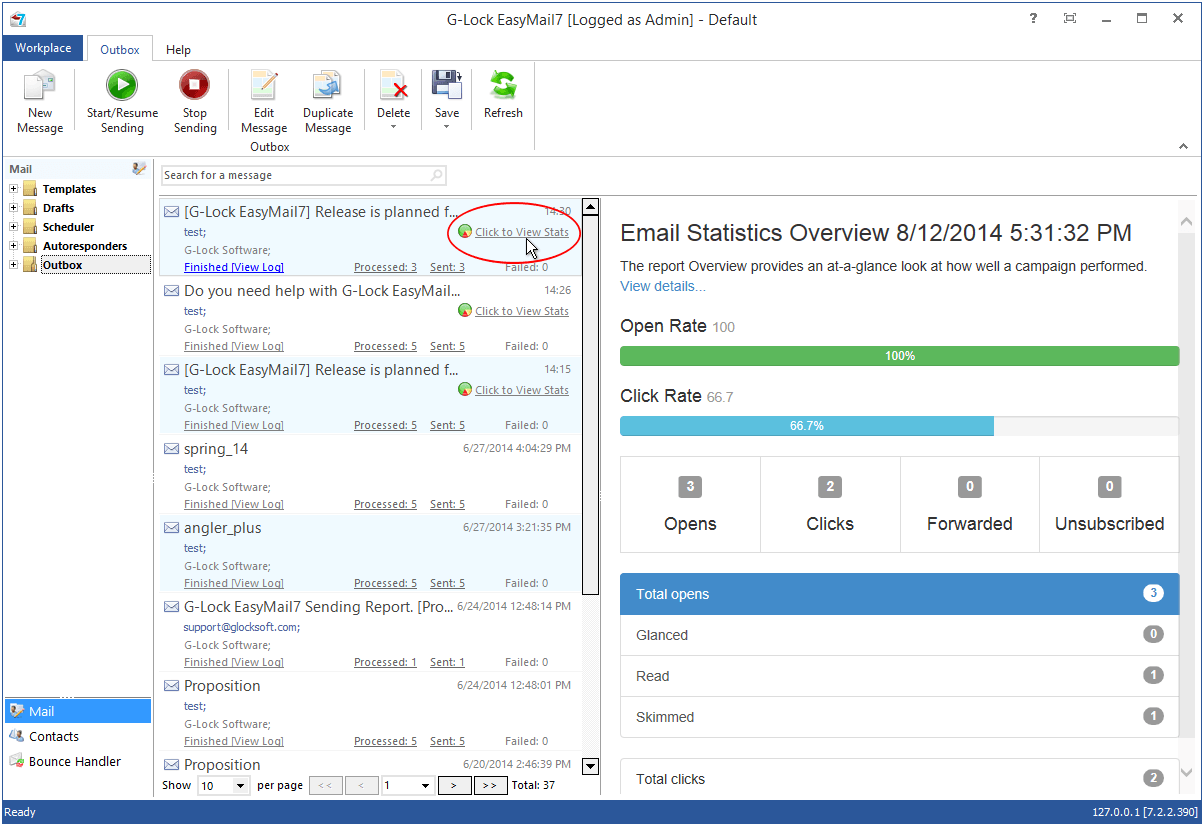
You can see the email tracking statistics overview right inside EasyMail7. Just click on “Click to View Stats” link for the message in the Outbox.
The Overview shows the open rate and click rate, the number of opens, clicks, forwards, and unsubscribes. Plus, you can quickly see how many recipients read, glanced and skimmed your email.
To get the full campaign statistics, click on “View Details”. You will be redirected to the campaign reports in your account on G-Lock Analytics website.
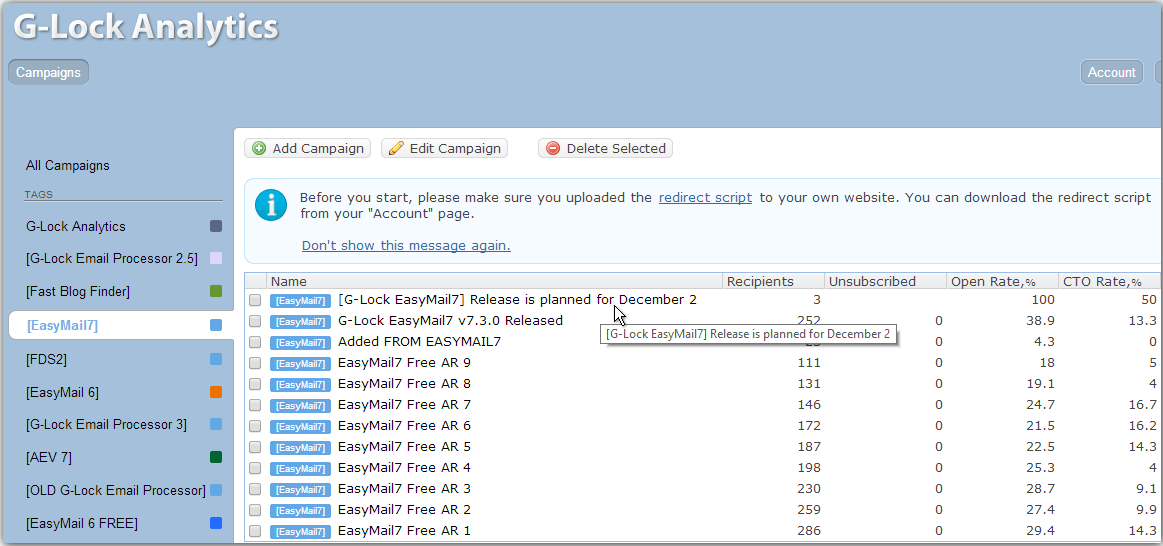
You can also login to your account from G-Lock Analytics website and see the reports at any time.
Click on the campaign name.
At the left side under "Reports:" click on the report name to see the email tracking stats.
Overview
In the "Overview" report here you can see: total of recipients, number of unique/total opens, how many recipients opened your email in the plain text format (%), number of unique/total clicks, number of email prints and forwards, number of bounce emails, number of unsubscribes.
Timeline
The "Timeline" report shows the campaign statistics for a certain period of time. You can define the time period yourself: month, day, or hour.
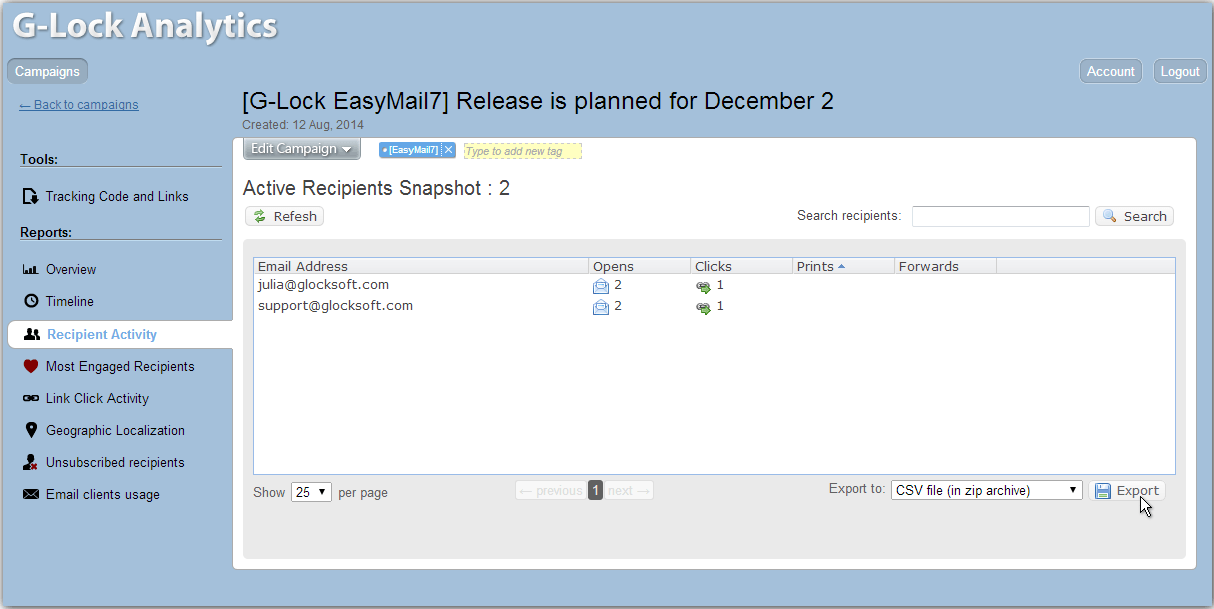
Recipient Activity
In the "Recipient Activity" report you can see the email addresses of the recipients who opened your email, clicked on the links within the email as well as who printed and forwarded your message. You can export the email addresses either to a CSV file or Excel XML file.
Note: Each time the recipient prints or forwards the email, G-Lock Analytics records an additional open. That's why the number of opens for the recipient may be higher than the real number of times the recipient opened the email.
Most Engaged Recipients
Here you can see a list of most engaged recipients of your email campaign. Most engaged recipients are determined based on the number of opens/clicks that you define in your account settings. Click on the "Account" and look at the bottom of the page. By default most engaged recipients are selected by 3 opens/clicks.
Link Click Activity
The "Link Click Activity" report will show you which links in your email were clicked, who clicked them and how many times. You can export the report either to a CSV file or Excel XML file.
Geographic Localization
Under "Geographic Localization" you can see the recipient’s activity on your email all over the world for a selected period of time. Put the mouse on a country to see how many visits your email got from that country. Under the map there is a list of countries and the number of email opens from each country.
Unsubscribed Recipients
Here your unsubscribed recipients will be collected if you use the unsubscribe link generated by G-Lock Analytics. You can export unsubscribes to a CSV file, zipped CSV file or Excel XML file.
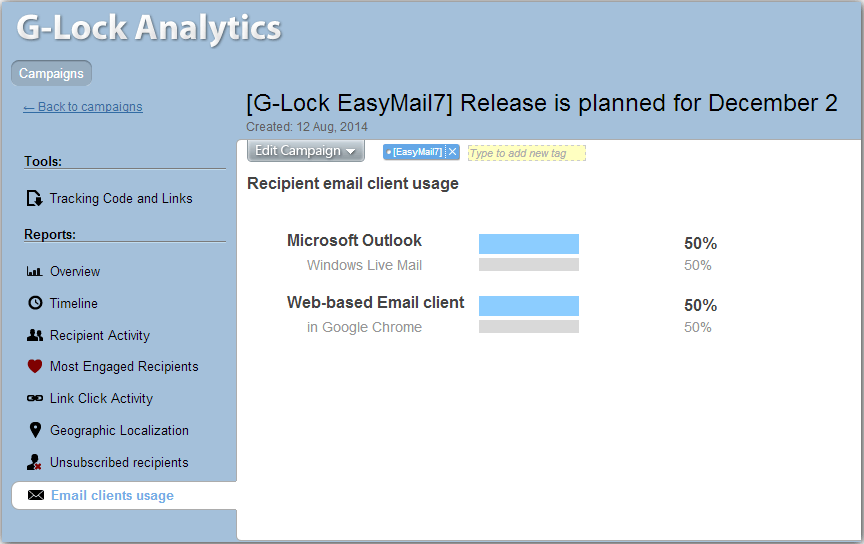
Email Clients Usage
This report provides a great overview of which email clients are popular among your recipients and helps you save your time when creating your email newsletter as you can focus on tailoring your email for most used email clients only.
Tags: Email tracking basics